Menu Top Logo Setting
Set Application Logo for each tenant.
Logo Image can be set in two situations: when the menu is opened and when it is closed.
[Image 1.Example of logo when menu is expanded.]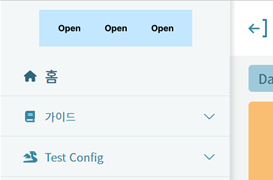
[Image 2. Example logo when the menu is closed]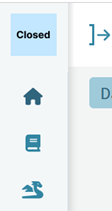
INFO
Logo Image Size Guide
- When the menu is expanded: 230px * 40px (actual logo area size: 250px * 60px)
- When the menu is collapsed: 45px * 40px (actual logo area size: 65px * 60px)
Top Logo Click URL Navigation
[Image 1. GNB Logo Link Setting Popup]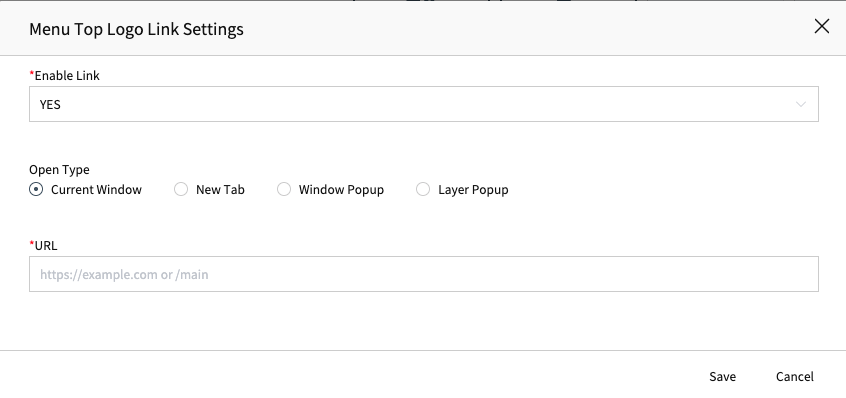
- Log in to Studio.
- Set the Menu Top Logo image.
- Configure the Logo Link.
- Save the GNB.
- Check In > Deploy
- When published, the changes will be applied to the production environment.
INFO
Logo Link Popup Description
- Enable Link: Determines whether to activate URL navigation when the Top Logo is clicked.
- Open Type: Choose whether to open the link in the current window, new tab, window popup, or internal popup.
- If Window Popup is selected:
Fit to Screen: Full screen. Custom: Allowable width: 250–3840 px / Allowable height: 150–3840 px url: Destination path to navigate to (must start with https://)
- If Layer Popup is selected:
Screen URL: Set the screen to display in the internal popup.
- Other options:
url: Destination path to navigate to (must start with https://)